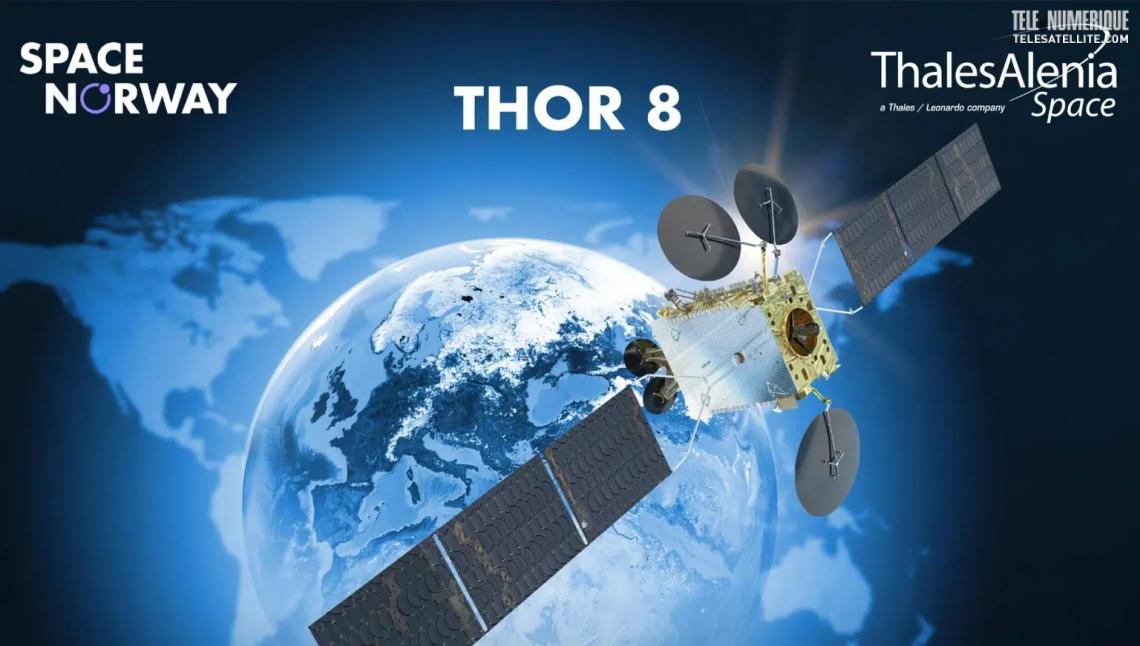
The Thor satellite system, operated by Space Norway (formerly Telenor Satellite Broadcasting), is a cornerstone of satellite communications, delivering high-quality broadcasting and broadband services across Europe, the Middle East, and North Africa (MENA).
Positioned at the prime orbital slot of 1° West, the Thor fleet—comprising Thor 5, Thor 6, Thor 7, and the upcoming Thor 8—supports direct-to-home (DTH) television, maritime connectivity, and data services for millions of users.
Known for its reliability and advanced technology, the Thor system serves broadcasters, maritime operators, and government clients, distributing over 1,000 TV channels and radio stations to more than 18 million homes.
This guide explores the Thor satellite system’s capabilities, its role in global connectivity, the latest frequency details for tuning, and practical tips for optimal reception as of June 2025.
Why Choose the Thor Satellite System?
-
Extensive Coverage: Provides robust Ku-band and Ka-band coverage across the Nordics, Central and Eastern Europe, the Middle East, and maritime regions like the North Sea, Red Sea, and Mediterranean.
-
High-Quality Broadcasting: Delivers HD and SD television channels, including major networks like Disney, BBC, and National Geographic, with minimal interruptions.
-
Maritime and Land Connectivity: Supports high-speed VSAT and broadband services for ships, oil platforms, and remote locations, enhancing crew welfare and operational efficiency.
-
Innovative Technology: Features advanced payloads, such as Thor 7’s Ka-band for high-throughput satellite (HTS) services and Thor 8’s dual-use design for government and commercial applications.
-
Free-to-Air and Scrambled Channels: Offers a mix of free-to-air and encrypted channels, ensuring accessibility for diverse audiences.
Thor Satellite Fleet Overview
The Thor satellite system, managed by Space Norway, has evolved through multiple generations, each enhancing capacity and coverage. Below is a summary of the active and upcoming satellites as of June 2025:
-
Thor 5: Launched in 2008 by Orbital Sciences Corporation, Thor 5 is based on the STAR-2 platform with 24 Ku-band transponders. It provides DTH television and fixed telecommunications services across the Nordics, Europe, and the Middle East, with 3.6 kW payload power. Positioned at 1° West, it remains a reliable workhorse despite its age.
-
Thor 6 (Intelsat 1W): Launched in 2009 by Thales Alenia Space, Thor 6 uses the Spacebus-4000B2 platform with 36 Ku-band transponders (16 for the Nordics, 20 for Central and Eastern Europe). It replaced Thor 3 and supports DTH television and broadband services at 0.8° West, with Intelsat leasing 10 transponders.
-
Thor 7: Launched in 2015 by Space Systems/Loral (SSL), Thor 7 is a multi-mission satellite with 11 Ku-band transponders for broadcasting and 25 Ka-band spot beams for maritime broadband, covering the North Sea, Red Sea, Baltic Sea, Persian Gulf, and Mediterranean. It supports uplink speeds of 2–6 Mbps and is positioned at 1° West, with an expected lifespan beyond 2030.
-
Thor 10-02 (Intelsat 10-02): Launched in 2004, this satellite, co-operated with Intelsat, received a pioneering mission extension in 2021 via Northrop Grumman’s MEV-2, extending its life by several years. It provides broadcasting and connectivity services across Europe and the Middle East at 1° West.
-
Thor 8: Ordered in 2025 from Thales Alenia Space, Thor 8 is a dual-use satellite with Ku- and Ka-band payloads, set to launch around 2028. It will serve broadcasting in Central and Eastern Europe, the Nordics, and maritime/government clients across EMEA, with a lifespan exceeding 15 years.
Frequency for Thor Satellites
|
Satellite |
Frequency |
Polarization |
Symbol Rate |
FEC |
Coverage |
Details |
|---|---|---|---|---|---|---|
|
Thor 5 |
11216 MHz |
Vertical (V) |
25000 kS/s |
3/4 |
Nordics, Europe, Middle East |
DVB-S2, 8PSK, Canal Digital Beam T1, HDTV/SD, scrambled/free-to-air. |
|
Thor 5 |
11229 MHz |
Horizontal (H) |
25000 kS/s |
3/4 |
Nordics, Europe, Middle East |
DVB-S2, 8PSK, Canal Digital Beam T1, HDTV/SD, scrambled/free-to-air. |
|
Thor 6 |
10778 MHz |
Vertical (V) |
25000 kS/s |
3/4 |
Nordics, Central/Eastern Europe |
DVB-S2, 8PSK, HDTV/SD, scrambled/free-to-air, K1/K2 beams. |
|
Thor 7 |
12494.5 MHz |
LHCP |
Variable |
Auto |
Maritime (North/Red/Baltic Sea) |
Ka-band, DVB-S2, VSAT services, beacon signal. |
|
Thor 10-02 |
11278 MHz |
Vertical (V) |
27500 kS/s |
3/4 |
Europe, Middle East |
DVB-S2, HDTV/SD, scrambled/free-to-air, Intelsat beam. |
Key Information
-
Satellite Coverage: Thor 5, 6, 7, and 10-02 primarily cover the Nordics, Central and Eastern Europe, and parts of the Middle East. Thor 7’s Ka-band extends to maritime regions, including the North Sea, Red Sea, Baltic Sea, Persian Gulf, and Mediterranean. Hot Bird (13.0° E) is more relevant for Emirates TV, but Thor’s extensive coverage supports similar channels.
-
Frequency Accuracy: The listed frequencies are for general broadcasting and data services. Emirates TV is not currently broadcast on Thor satellites, but viewers can use these transponders for other channels like BBC or Disney. Avoid outdated frequencies like 11389 MHz (Horizontal, FEC 7/8) on Thor 5.
-
Global Access: Thor signals may weaken outside Europe/MENA. For Emirates TV, consider Nilesat (12226 MHz Vertical), Arabsat (11804 MHz Horizontal), or Hot Bird (11747 MHz Vertical), or stream on official platforms.
-
Free-to-Air Status: Many Thor channels are scrambled (e.g., Canal Digital), but some are free-to-air. Emirates TV, if hypothetically added, would likely be free-to-air, like its Nilesat broadcasts.
Tips for Strong Reception
To receive Thor satellite signals (1° West or 0.8° West) with clear, uninterrupted viewing, follow these practical tips for optimal reception:
-
Dish Size: Use a 70-100 cm dish in the Nordics and Central Europe. For the Middle East or fringe areas (e.g., southern Europe), a 100-150 cm dish improves signal strength.
-
Precise Dish Alignment: Point your dish to 1° West or 0.8° West using a satellite finder or mobile apps. Ensure no obstructions (e.g., buildings, trees) block the line of sight.
-
LNB Selection: Install a Universal Ku-band LNB (9.75/10.6 GHz) for Ku-band transponders (Thor 5, 6, 10-02) or a Ka-band LNB for Thor 7’s maritime services. Confirm receiver compatibility with DVB-S and DVB-S2.
-
Signal Quality: Aim for 70% or higher signal quality (98% optimal) on your receiver’s signal meter to avoid pixelation. Adjust LNB skew for peak performance.
-
Weather Protection: Ku- and Ka-band signals may weaken during heavy rain or snow. Secure your dish and check LNB caps for water damage to ensure stability.
-
Coverage Check: Confirm your location is within the satellite’s beam (Nordics, Europe, MENA, or maritime zones) for reliable reception.
Tuning Thor Satellites on Your Receiver
Adding channels from Thor 5, 6, 7, or 10-02 to your satellite receiver is straightforward with these steps, compatible with most receivers (e.g., Strong, Humax, Starsat), though menu labels may vary.
-
Access the Menu:
-
Press “Menu” or “Settings” on your remote.
-
Navigate to “Installation,” “Channel Search,” or “Antenna Setup.”
-
-
Select Manual Scan:
-
Choose “Manual Scan,” “Manual Installation,” or “Add Transponder.”
-
Select “Add TP” or “Edit Transponder” if prompted.
-
-
Choose Your Satellite:
-
Select Thor 5, Thor 6, Thor 7, or Intelsat 10-02 (Thor 10-02) at 1° West or 0.8° West from the satellite list.
-
If not listed, manually enter the orbital position (1° W or 0.8° W).
-
-
Enter Transponder Settings:
-
Refer to the frequency table above and input the settings for your chosen satellite (e.g., 11216 MHz, Vertical, 25000 kS/s, 3/4 for Thor 5).
-
Double-check entries for accuracy.
-
-
Run the Scan:
-
Press “Scan,” “Search,” or “OK” to start the scan.
-
Select “FTA Only” for free-to-air channels or “All Channels” for scrambled and free options.
-
Wait 1-3 minutes for the scan to complete.
-
-
Save Channels:
-
Press “Save” or “OK” to store the scanned channels.
-
Channels will appear in your list (e.g., “6`eren HD” on Thor 6).
-
-
Fine-Tune for Strong Signal:
-
If the signal is weak or channels are missing, adjust the dish’s azimuth and elevation while monitoring the signal meter.
-
Check LNB skew and cables for 70-98% signal strength.
-
-
Test the Broadcast:
-
Locate a channel in your list and select it to confirm clear playback.
-
If issues persist, recheck settings or consult a professional installer.
-
How to Check the Integrity of Cables and Connectors
The quality of your satellite signal heavily depends on the condition of cables and connectors. Damaged or loose connections can cause signal loss, poor picture quality, or intermittent reception. Regular inspection helps maintain stable viewing.
1. Inspect Cables Visually
- Check for cuts, bends, or exposed wires along the entire cable length.
- Look for signs of wear, corrosion, or water damage on outdoor cables.
- Replace any damaged cables immediately to prevent signal degradation.
2. Check Connector Tightness
- Ensure that F-connectors and other cable connectors are securely attached to the receiver and LNB.
- Avoid over-tightening, which can damage threads or the connector itself.
- Periodically unplug and reattach connectors to ensure proper contact.
3. Test with a Signal Meter
- Use a satellite signal meter or your receiver’s signal quality indicator to test the signal.
- Weak or fluctuating readings may indicate cable issues or poor connections.
- Trace the cable to find any faulty section and replace if necessary.
4. Check for Interference
- Ensure cables are routed away from electrical devices that may cause interference.
- Use high-quality coaxial cables with proper shielding to minimize signal loss.
5. Maintain Regular Checks
- Inspect cables and connectors periodically, especially before major events or important broadcasts.
- Replace aging cables to ensure consistent signal quality over time.
By regularly inspecting and maintaining your cables and connectors, you can prevent signal issues, ensure stable reception, and enjoy uninterrupted access to satellite channels.
How to Identify New Satellite Frequencies Before Scanning
Staying updated with the latest satellite frequencies allows users to efficiently find and tune new channels without wasting time on trial-and-error scans. Knowing where to look ensures a smoother and faster channel setup.
1. Follow Reliable Satellite Websites
- Use trusted sources that regularly publish updated frequency lists for various satellites.
- Check for details such as frequency, polarization, symbol rate, and FEC for accuracy.
- Subscribe to newsletters or feeds from satellite providers for real-time updates.
2. Use Satellite Receiver Tools
- Many modern receivers include tools or apps to automatically fetch new transponder data.
- Enable features like “Channel Update” or “Auto Transponder Scan” for automatic detection.
- Keep your receiver firmware up to date to support these features.
3. Monitor Official Broadcaster Announcements
- Follow official channels or social media accounts of broadcasters for announcements of new channels.
- Note down the frequency and other parameters as soon as they are published.
4. Use Satellite Tracking Apps
- Satellite tracking apps help identify which satellites are active in your region.
- They often provide real-time frequency updates and footprints for better planning.
5. Keep a Personal Frequency Log
- Maintain a record of new frequencies you discover or plan to scan.
- Update the log regularly to avoid scanning the same frequencies repeatedly.
- This helps you quickly access new channels as they become available.
By proactively identifying new satellite frequencies, users can save time, avoid missing new channels, and maintain a complete and up-to-date channel lineup.
How to Efficiently Identify and Tune New Satellite Channels
Satellite channels are frequently added, updated, or moved to new frequencies. To ensure you never miss new broadcasts, it is important to know how to efficiently detect and tune newly launched channels using the correct scanning methods and proper receiver settings.
1. Verify the Latest Frequency Information
- Always check updated frequency, polarization, and symbol rate details from reliable satellite sources.
- Confirm the satellite orbital position (e.g., 7°W, 13°E) before scanning.
- Incorrect parameters are the most common reason new channels are not detected.
2. Select the Appropriate Scanning Method
- Manual Scan: Ideal when you have specific transponder details for a new channel.
- Blind Scan: Automatically searches all active frequencies to discover newly added channels.
- Network Scan (if available) can detect additional related transponders.
3. Optimize Dish Alignment for Weak New Signals
- New channels sometimes broadcast with lower power during testing phases.
- Fine-tune azimuth and elevation for maximum signal quality.
- Adjust LNB skew slightly to improve signal reception.
4. Update Receiver Firmware
- Ensure your receiver software supports new compression standards like DVB-S2 and HEVC.
- Firmware updates improve compatibility with recently activated transponders.
- Restart the receiver after updates before scanning again.
5. Organize and Manage New Channels
- Sort newly found channels into favorites lists for easy access.
- Delete duplicate or inactive channels after scanning.
- Rename test channels if needed for better organization.
6. Troubleshooting if Channels Do Not Appear
- Recheck frequency details for accuracy.
- Confirm signal quality is stable above acceptable levels.
- Inspect cables and LNB connections if scanning fails repeatedly.
By combining updated frequency data, proper dish alignment, and the correct scan method, users can efficiently detect and tune new satellite channels while maintaining a clean and organized channel list.
Setting Your Receiver to Automatically Follow New Channels
Modern satellite receivers allow automatic updates of the channel list without manually scanning each frequency. This ensures you always access new channels and maintain a complete, organized lineup.
1. Enable Auto-Update Features
- Go to your receiver’s Settings or System menu.
- Look for options like Auto Channel Update, Network Scan, or Channel Refresh.
- Turn on the feature to allow the receiver to check for new channels automatically at scheduled times.
2. Connect to the Satellite or Network
- Some receivers require connection to the satellite network or an internet feed for automatic updates.
- Ensure your receiver is online if the feature relies on network-based updates.
3. Schedule Update Times
- Set the update to occur at convenient times, such as overnight, to avoid interrupting viewing.
- Choose daily, weekly, or event-based update intervals if available.
4. Keep Receiver Firmware Updated
- Maintain the latest firmware to support automatic channel updates.
- Check manufacturer notifications to ensure compatibility with the latest transponder changes.
5. Verify Updated Channels
- After auto-update, review your channel list to ensure new channels are added correctly.
- Organize favorites and remove duplicates or inactive channels if necessary.
Enabling automatic channel updates saves time, ensures you never miss newly launched channels, and keeps your receiver’s lineup complete and organized without manual effort.
How Satellites Enable Global Live Sports Broadcasting
Satellite technology is the backbone of global live sports broadcasting. It allows major sporting events—such as the
FIFA World Cup and the Olympic Games—to be transmitted in real time to millions of viewers across continents with high reliability and quality.
1. Capturing the Live Event
- Multiple professional cameras capture the action from different angles inside the stadium.
- Audio commentary, instant replays, and on-screen graphics are added in a production control room.
- The final video feed is encoded into a compressed digital format suitable for satellite transmission.
2. Uplink Transmission to the Satellite
- The encoded broadcast signal is sent from a ground station (uplink facility) to a geostationary satellite in orbit.
- The satellite receives, amplifies, and shifts the frequency of the signal.
- High-powered transponders ensure wide and stable coverage over large regions.
3. Downlink Distribution to Broadcasters and Viewers
- The satellite retransmits the signal back to Earth across its coverage footprint.
- TV networks receive the signal at their ground stations for redistribution via cable, terrestrial, or IPTV systems.
- Home satellite dishes receive the signal directly for live viewing.
4. Maintaining High Quality and Low Latency
- Advanced standards such as DVB-S2 and HEVC compression allow HD and 4K broadcasts with efficient bandwidth usage.
- Redundant satellite links prevent interruptions during critical live moments.
- Hybrid systems combine satellite and fiber networks to minimize broadcast delay.
5. Why Satellites Are Essential for Live Sports
- Global reach without relying on local infrastructure.
- Simultaneous transmission to multiple countries and languages.
- Reliable performance even in remote or disaster-affected areas.
In summary, satellites make worldwide live sports coverage possible by rapidly transmitting high-quality video signals from stadiums to broadcasters and viewers everywhere, ensuring fans never miss a single moment of the action.
How to Restore Channels After a Factory Reset
Performing a factory reset on your satellite receiver erases all saved channels, favorites, and settings. Restoring your channels correctly ensures you can continue enjoying your favorite content without starting from scratch.
1. Backup Before Reset
- If possible, always create a backup of your channel list and settings before performing a factory reset.
- Use a USB flash drive or the receiver’s built-in backup feature.
- Store the backup file safely to prevent corruption or loss.
2. Perform the Factory Reset
- Access the Settings or System menu on your receiver.
- Select Factory Reset or Restore Default Settings.
- Confirm the action and wait until the reset is complete.
3. Restore Channels from Backup
- Connect your USB drive with the backup file to the receiver.
- Use the Restore or Import Channels option in the menu.
- Verify that all channels, favorites, and settings have been restored correctly.
4. Manual Channel Scan (If Backup Is Unavailable)
- Use the Auto Scan or Network Scan feature to search for available channels.
- For specific channels, perform a manual scan using the frequency, polarization, and symbol rate.
- Save the channels after scanning and organize your favorites as needed.
5. Verify Signal and Settings
- Check the signal strength and quality for each restored channel.
- Adjust dish alignment or LNB skew if necessary to improve reception.
- Ensure parental controls and other custom settings are reapplied.
By following these steps, you can quickly restore your channels after a factory reset, minimizing downtime and ensuring a seamless viewing experience.
How to Set Your Receiver for Automatic Channel Updates
Modern satellite receivers allow users to automatically update their channel list without manually scanning each transponder. This ensures you always have access to new channels and maintains a complete, organized lineup.
1. Enable Auto-Update Features
- Go to your receiver’s Settings or System menu.
- Look for options like Auto Channel Update, Network Scan, or Channel Refresh.
- Turn on the feature to allow the receiver to check for new channels automatically at scheduled intervals.
2. Connect to a Satellite or Network Feed
- Some receivers require connection to the satellite’s official network or a broadband feed for automatic updates.
- Ensure the receiver is online if using an internet-assisted update.
3. Schedule Update Times
- Set the update to occur at convenient times, such as overnight, to avoid interrupting viewing.
- Check for options to update daily, weekly, or whenever a new transponder is detected.
4. Maintain Receiver Firmware
- Keep your receiver firmware up to date to support automatic updates.
- Check manufacturer notifications for compatibility with the latest transponder changes.
5. Verify Updated Channels
- After the auto-update runs, review your channel list to ensure new channels are added correctly.
- Organize favorites and remove duplicates or inactive channels if necessary.
By enabling automatic channel updates, you save time, avoid missing newly launched channels, and ensure your receiver maintains a fully updated, organized lineup without manual intervention.
How to Manage Live Broadcast Channels for Major Events
Live broadcasting of major events, such as international sports tournaments, concerts, or global ceremonies, requires proper receiver setup and awareness of channel updates. Managing these channels ensures uninterrupted access to live coverage.
1. Identify the Official Broadcast Channels
- Check which channels hold the broadcasting rights for the event in your region.
- Note their satellite, frequency, polarization, and symbol rate details.
- Follow official websites or social media for real-time announcements.
2. Use Auto-Update and Network Scan Features
- Enable your receiver’s auto-update or network scan to detect new channels automatically.
- Perform a quick manual scan if channels are newly added or temporarily changed.
3. Optimize Signal Reception
- Ensure the dish is properly aligned with the satellite transmitting the event channels.
- Fine-tune LNB skew and check signal quality indicators for stable reception.
- Use high-quality coaxial cables to avoid signal loss during important broadcasts.
4. Backup Channel Lists Before Major Events
- Create a backup of your existing channel list to avoid losing settings during updates.
- Restore the backup if any channels are accidentally removed or reorganized.
5. Organize Favorites for Quick Access
- Add event channels to your favorites list for easy and fast access.
- Remove duplicates or irrelevant channels to keep the list organized.
6. Monitor for Temporary Frequency Changes
- Some broadcasters may use temporary transponders for live events.
- Keep updated frequency information handy to quickly retune channels if needed.
Following these steps ensures seamless access to live broadcasts of major events, prevents interruptions, and allows viewers to enjoy high-quality, real-time coverage without technical issues.




I like how you explain polarization and symbol rate clearly for beginners. Very informative.